
WPS Office-PDF, Word, Sheet
WPS SOFTWARE PTE. LTD.Productivity
4.460.61K Reviews
- Version
- 26.8.0
- Installs
- 500.00M
- Age Rating
- Everyone
Screenshots
Our Review of WPS Office-PDF, Word, Sheet
 Analysis by Appyee
I find WPS Office-PDF, Word, Sheet most appealing when I need several document tools in one place without reaching for a laptop. It brings writing, spreadsheets, presentations and PDF work together on a phone or tablet, which can turn a spare few minutes into useful work. The first impression is convenience; the more important question, for me, is whether that convenience keeps paying off once the novelty wears off.
The first week: a useful toolkit, quickly at hand
WPS Office is a free productivity app from WPS SOFTWARE PTE. LTD. It has been around since July 21, 2011, and its current version is 18.24. The scale of its audience is striking: it has over 500 million installs, an average rating of 4.5 from around 5.9 million ratings, and about 61,000 written reviews. That popularity does not guarantee a perfect fit, but it does suggest the app has become a familiar option for people who want office tools on mobile.
In my first few sessions, the biggest advantage is not any single editor; it is having a place to open different kinds of work. A Word document, a spreadsheet, a slide deck and a PDF do not require separate apps just to get started. That matters when a file arrives unexpectedly and I need to check its contents before deciding whether it needs serious editing or can wait until I’m back at a computer.
The app is rated for Everyone and runs on devices using Android 7.0 or later. It is free to download, with in-app purchases ranging from $0.05 to $239.99 per item. I would treat that purchase range as a reason to check what a particular paid option includes before committing, rather than assuming every tool I might want is part of the free experience. If you only need basic viewing and occasional edits, try your usual tasks first and see whether the free version suits your routine.
First Impressions and Features
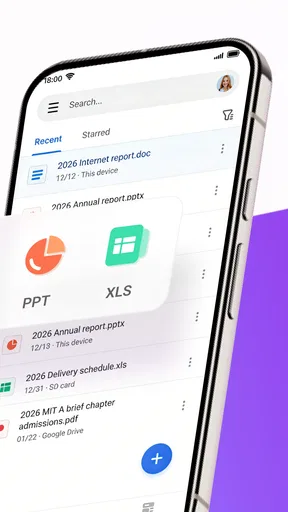
When you first open WPS Office, you’re greeted with a sleek and intuitive interface. Everything feels just a swipe away, which is a blessing when you’re trying to get things done quickly. The app supports a wide array of file formats, including PDF, Word, Excel, and PowerPoint, making it a versatile tool for any document-related task you might have.
One of the standout features for me was the ability to convert PDF files to Word and vice versa. This is a lifesaver when you need to edit a PDF, but all you have is your mobile device. The app also offers cloud integration, so you can seamlessly sync your documents with services like Google Drive, Dropbox, and OneDrive. No more panicking about where you saved that important file!
A practical handoff between PDF and editable documents
Conversion is particularly handy when a PDF is mostly text and I need to revise a short passage, reuse a table, or correct a detail without rebuilding the document from scratch. I still check the converted result carefully: PDF layouts can contain columns, positioned text or unusual spacing that do not translate neatly into an editable page. My tip is to treat conversion as a shortcut to a first draft, not as a guarantee that the layout will be preserved exactly.
The same caution applies when I’m preparing something that another person will rely on. I would review page breaks, headings and table alignment before sending a converted file, especially if it is a form or a document where precise formatting matters. For a quick internal note, small layout shifts may be harmless; for a polished submission, a desktop editor can be the safer finishing step.
Getting Down to Business
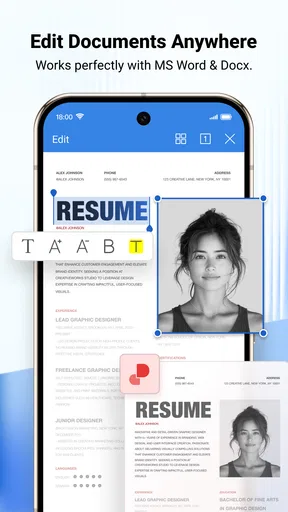
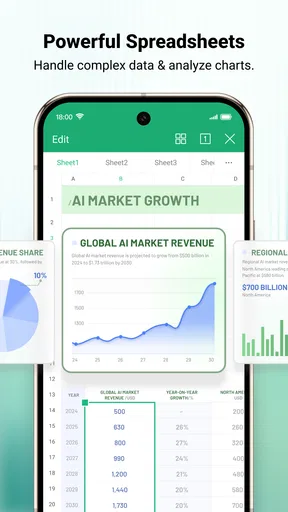
Writing and editing documents on WPS Office is a breeze. The app provides a comprehensive set of editing tools that rival those of traditional desktop applications. You can easily adjust fonts, insert images, and even manage your document’s layout—all from your phone or tablet. The spreadsheet feature is robust, too, allowing for complex calculations and data analysis, which is perfect for anyone who loves a good pivot table.
Mobile editing has a natural limit: a small screen makes detailed formatting slower, even when the controls are available. I find the app most effective for revising a paragraph, fixing a heading, checking a formula or updating a number, rather than building a long report or carefully arranging a complicated sheet from the beginning. If you have a tablet and a keyboard, sustained work becomes more comfortable; on a phone, short, targeted changes are the better fit.
Spreadsheets are a good example of where a little planning helps. I would use a mobile session to check a total, update a few entries or review a table while away from my desk. Before making extensive changes to a workbook, I’d confirm the important formulas and the visible layout after editing. A small screen can make it easy to miss a column or select the wrong cell, so zooming in and checking the finished result is worth the extra moment.
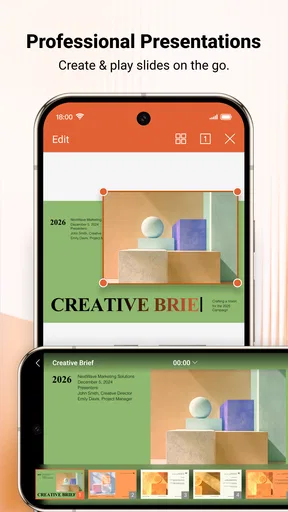
Another feature worth mentioning is the presentation tool. It might not replace your desktop PowerPoint experience entirely, but for quick edits or presentations on the fly, it’s more than capable. You can add animations, transitions, and notes just as you would on your computer. Plus, with the app’s wireless presentation capabilities, you can connect to a projector or smart TV for seamless presentations.
PDF Management and More
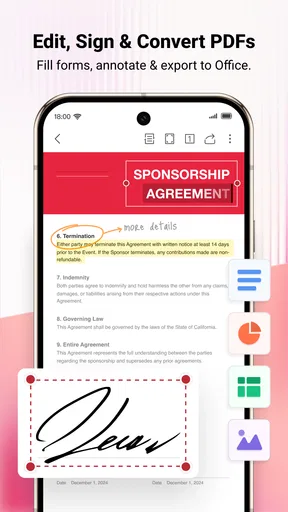
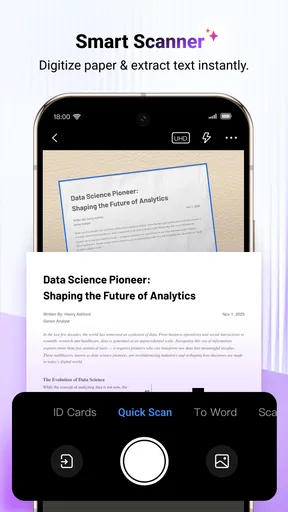
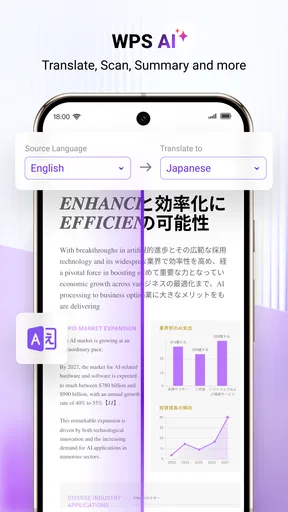
PDFs are often the bane of mobile productivity, but not with WPS Office. The app includes a PDF reader and editor that allows you to annotate, highlight, and sign documents directly on your device. Whether you’re reviewing a contract or marking up a textbook, the app makes it simple and efficient. Plus, the OCR feature is a nifty tool that extracts text from images, which can be incredibly useful for digitizing paper documents.
OCR has a practical role beyond scanning a page for storage: it can make text in an image searchable or give me material to reuse, rather than leaving it trapped in a picture. I would still compare extracted text against the original before relying on it. A smudged page, unusual typeface or crowded layout can make recognition less dependable, and a quick proofread is especially important for names, figures and dates.
For a realistic workday, imagine a colleague sends a PDF form while I’m away from my computer. I can open it, read the instructions, fill in the fields, sign it and send it back without turning the task into a print-and-scan detour. If the document is a draft rather than a form, I can mark passages for review and leave the deeper rewrite for a larger screen. That split—handle the immediate task now, reserve precision work for later—is where mobile office software earns its place for me.
For those who frequently work with forms, the app supports form filling and electronic signatures, which can streamline your workflow significantly. Imagine signing a document without having to print, sign, and scan it back in. It’s these little conveniences that make the app a powerhouse for productivity.
When an all-in-one app beats separate tools—and when it doesn’t
Compared with using separate apps for documents, sheets and PDFs, the main benefit here is continuity: I can open a file and move to another document task without changing my whole setup. That is useful for students reviewing class materials, freelancers checking a client file between appointments, or anyone who receives a mixture of office formats. A person who already has a preferred editor for each task may see less value, particularly if their work depends on a narrow set of advanced desktop features.
For shared work, cloud storage can make it easier to reach a document from different places, but I would pay attention to where the working copy lives. If a file is saved locally and another copy is in a cloud service, it is worth checking which one is current before editing or sending it. A simple habit—open the intended copy, make the change, then verify the saved version—can prevent the familiar problem of sharing yesterday’s draft.
This is also not the app I would choose as my only tool for long, highly formatted reports, intricate spreadsheet modelling or final slide design. Mobile controls help with quick work, but they cannot make a phone screen as comfortable as a keyboard, a large display and a desktop workflow. I see WPS Office as a capable companion to those tools, not a reason every user should abandon them.
Usability and Performance
Now, let’s talk about usability. The app is designed to be user-friendly, even for those who might not be tech-savvy. The menus are straightforward, and the learning curve is minimal. Performance-wise, the app runs smoothly on both Android and iOS devices. I tested it on a mid-range Android phone and an iPad, and it handled everything I threw at it without so much as a hiccup.
Even when working with large files, the app remained responsive, which is a testament to how well it’s optimized. Battery usage is reasonable, though, like any intensive app, it can drain your battery a bit quicker during prolonged sessions. But for short bursts of productivity, it’s perfectly manageable.
The maintenance burden is mostly about keeping your files and habits tidy, not mastering an elaborate workflow. I would decide early whether I want to work from local copies or from a cloud location, then stick to that choice for each project. I’d also close out tasks by checking the document name and saved version before sharing it. Those small routines matter more than learning every button, and they reduce the chance of confusing drafts when a busy week leaves files scattered across different places.
There is a trade-off in having many tools gathered in one app: the interface can feel busier than a focused PDF reader or a dedicated writing app. When I only want to read a document, I do not need every editing option competing for attention. The broad toolkit is valuable when tasks vary, but someone who wants a quiet, single-purpose reading experience may prefer a simpler app.
Final Thoughts
So, is WPS Office-PDF, Word, Sheet worth your time and storage space? Absolutely. It’s a versatile, reliable, and feature-rich office suite that can handle a variety of tasks with ease. Whether you’re editing documents, managing spreadsheets, or giving presentations, this app is up to the task. Plus, its ability to integrate with cloud services ensures that your documents are always accessible.
If you’re looking for an app that can bring the power of a desktop office suite to your mobile device, give WPS Office a try. And hey, it might just become your new favorite productivity tool!
My longer-term test is whether I reach for it after the first week, not whether the range of tools looks impressive on day one. If I regularly receive PDFs, make small edits while travelling, or need to check a spreadsheet away from my desk, I can see it earning a lasting place. If I mostly create documents at a computer and rarely handle files on my phone, it may become an occasional backup rather than a daily habit.
The app is at its best when I treat it as a practical bridge between work sessions: review now, make a modest change, and finish detailed formatting later if needed. That habit makes the convenience repeatable without pretending mobile editing has no limits. For a student, a mobile worker or a household that often has forms to sign, the combination can save little chunks of time throughout the month.
I would skip it if what I want is a highly specialized tool with a restrained interface, or if my work depends on precise desktop-level control every day. I would also avoid assuming that every paid option is necessary; the free download gives me a sensible starting point, while the in-app purchase range makes it worth checking individual choices before paying. For many people, the lasting value is simply having one familiar place to open, annotate and make quick changes to everyday files.
My verdict is that WPS Office earns its space through recurring usefulness rather than novelty. It is not a flawless replacement for desktop software, and a broad set of tools can sometimes feel like more than I need. But when documents arrive in different formats and the next task cannot wait for a laptop, having writing, spreadsheet, presentation and PDF work together is a real advantage. If those interruptions are part of your routine, I’d keep it installed; if not, a focused alternative may suit you better.
How WPS Office-PDF, Word, Sheet Compares
Full ComparisonChoose Google Sheets for straightforward shared spreadsheets, Excel for deeper analysis and offline work, or WPS Office for spreadsheets alongside PDF and document tools.
| App | Developer | Rating | Price |
|---|---|---|---|
 Google Sheets | Google LLC | 4.7 | Free |
 Microsoft Excel: Spreadsheets | Microsoft Corporation | 4.8 | Free |
 WPS Office-PDF, Word, SheetThis App | WPS SOFTWARE PTE. LTD. | 4.4 | Free |
Verdict
Strengths of WPS Office-PDF, Word, Sheet
- Comprehensive document format support.
- User-friendly interface with easy navigation.
- Cloud storage integration for easy access.
- Offers PDF editing and conversion tools.
- Regular updates and new features.
Limitations of WPS Office-PDF, Word, Sheet
- Contains ads in the free version.
- Some features require a premium subscription.
- Occasional performance lags on older devices.
- Limited free cloud storage space.
- In-app purchases might be necessary.
Similar Picks in This Category
View All
Google Calendar
Google LLC4.6

Google Drive
Google LLC4.3

Google Assistant
Google LLC3.9

Microsoft OneDrive
Microsoft Corporation4.6

Samsung Calendar
Samsung Electronics Co., Ltd.4.1

Microsoft OneNote: Save Notes
Microsoft Corporation4.6
Frequently Asked Questions
What features does WPS Office offer for document editing?
WPS Office provides a comprehensive suite of tools for editing documents, including word processing, spreadsheets, and presentations. It supports a wide range of file formats, ensuring compatibility with Microsoft Office files. The app also offers PDF editing capabilities, cloud integration for easy access, and a variety of templates to enhance productivity.
Is WPS Office free to use, and are there any premium features?
WPS Office is available as a free download, providing users with access to many essential features. However, it also offers a premium subscription that unlocks additional features, such as advanced PDF tools, an ad-free experience, and extra cloud storage. Users can choose the plan that best suits their needs.
Can I use WPS Office on multiple devices?
Yes, WPS Office supports multi-device use, allowing you to access and edit your documents seamlessly across Android, iOS, Windows, and macOS devices. By signing into your WPS account, you can synchronize your work and ensure that your files are up-to-date, no matter which device you are using.
How does WPS Office handle data security and privacy?
WPS Office takes data security and privacy seriously by implementing robust encryption protocols to protect your documents. The app ensures that your files are secure during cloud transfers and storage. Additionally, WPS Office follows strict privacy policies to safeguard user data, providing peace of mind for its users.
Are there any collaboration features available in WPS Office?
WPS Office offers collaborative tools that enable users to work together efficiently. With real-time editing and commenting features, teams can collaborate on documents, spreadsheets, and presentations seamlessly. The app's integration with cloud services also facilitates easy sharing and co-editing, making it ideal for remote work scenarios.
